
How to use sliders?
How to create a slider?
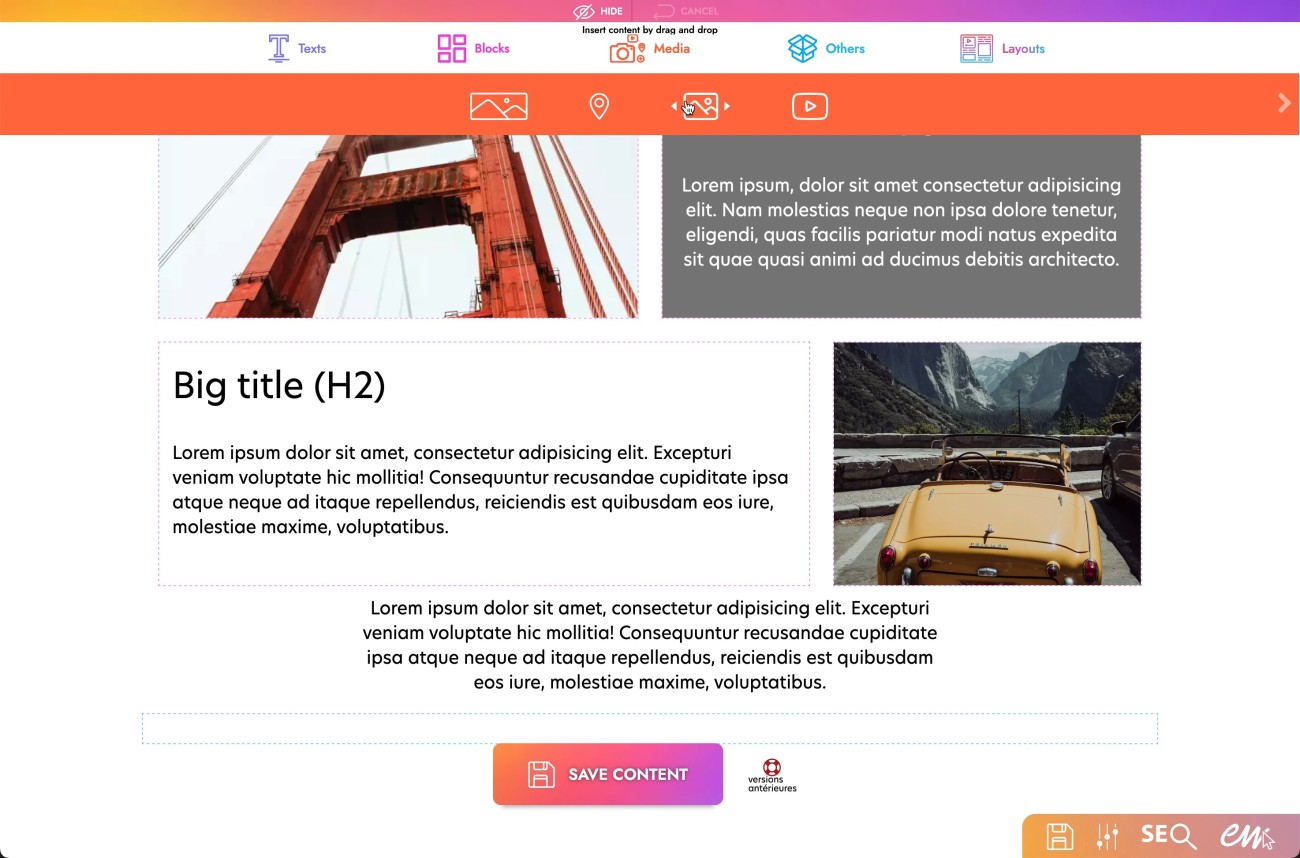
1. Click on the "Pencil" icon at the top left of the screen.
2. Hover over the orange "Media" icon.
3. Click and hold the "Add Slider" icon.
4. Drop it in the desired location.
How to add a new slide on the slider?

1. Hover over the module, a "+" icon appears in the upper right corner of the carousel module already present on the page.
2. Click on the "+" icon.
3. A new slide has been added.
How to add an image on the slider?
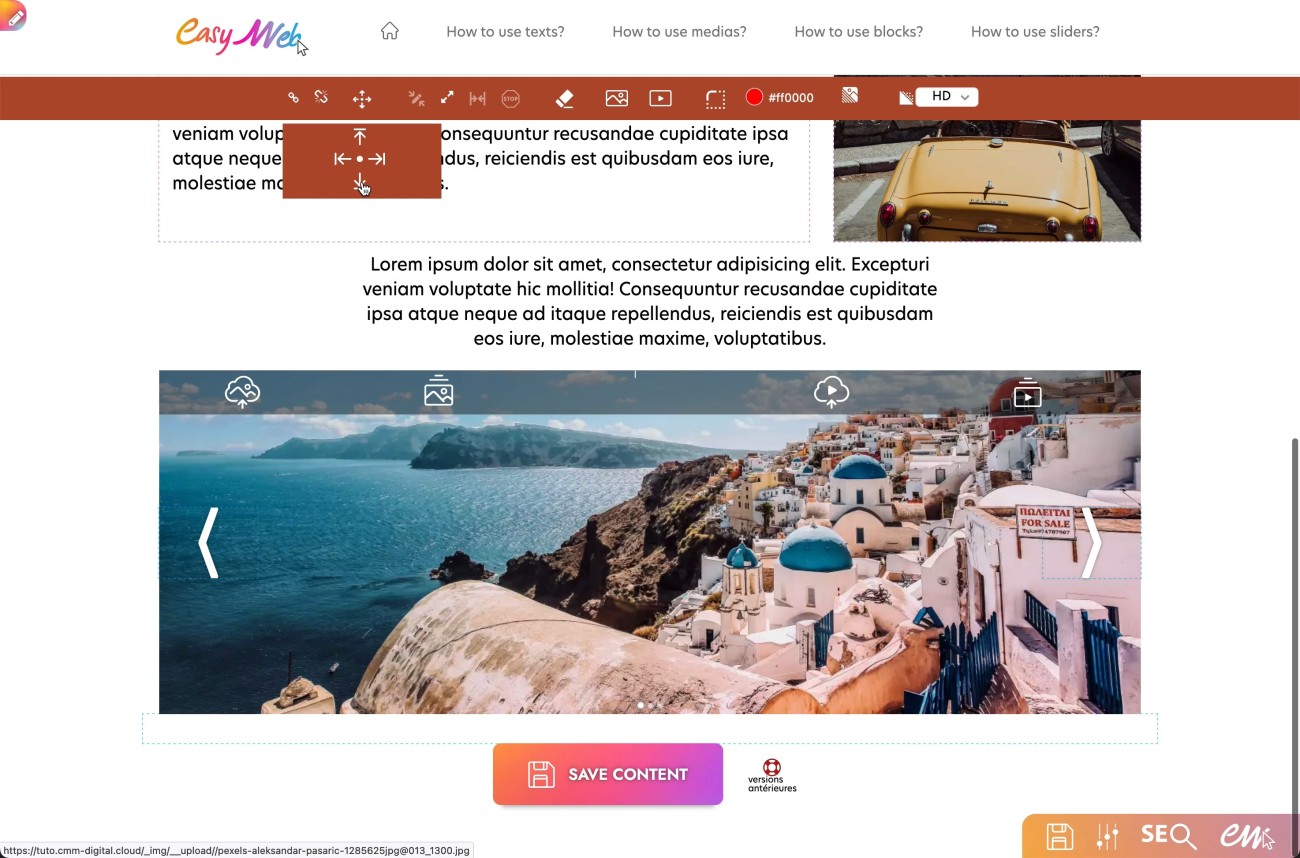
1. Click on the slider module already on the page.
2. A new orange menu bar appears at the top of the screen.
3. Click on the "Add Image" icon.
4. You have two options:
- Download an image from your computer
- Choose an image directly from your back office library.
- Click on one of the options.
5. Choose your image.
How to add a text on the slider?
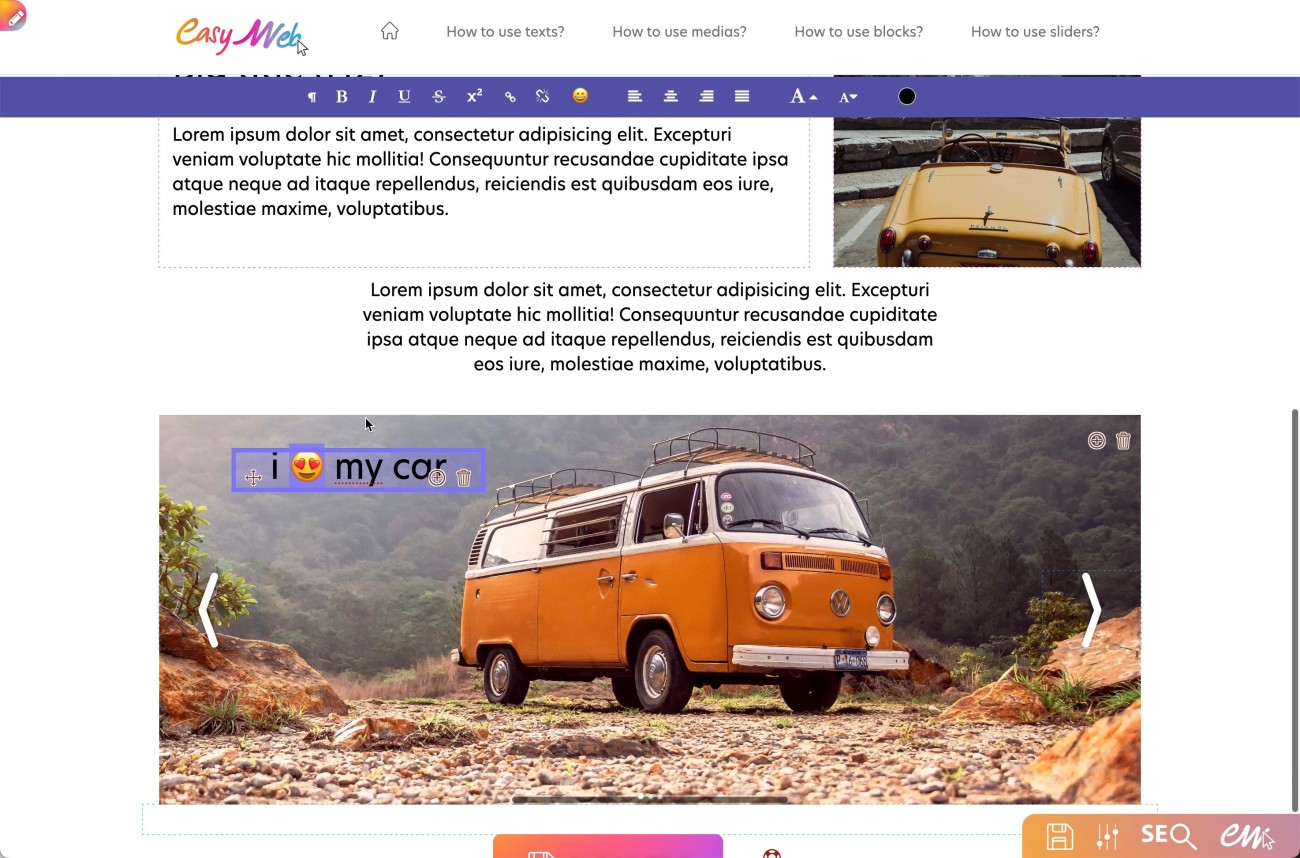
1. Click on the "Pencil" icon at the top left.
2. Hover over the Text menu in purple.
3. Click and hold on the title icon.
4. Drop it inside the slider.
5. Then click on the title located in the slider
6. A "Move" icon appears at the top left of the module.
7. Click and hold the icon to move the text to the desired location in the slider.